The Complete Guide To Crafting Professional Images In Midjourney
How Midjourney Transforms Words into Images
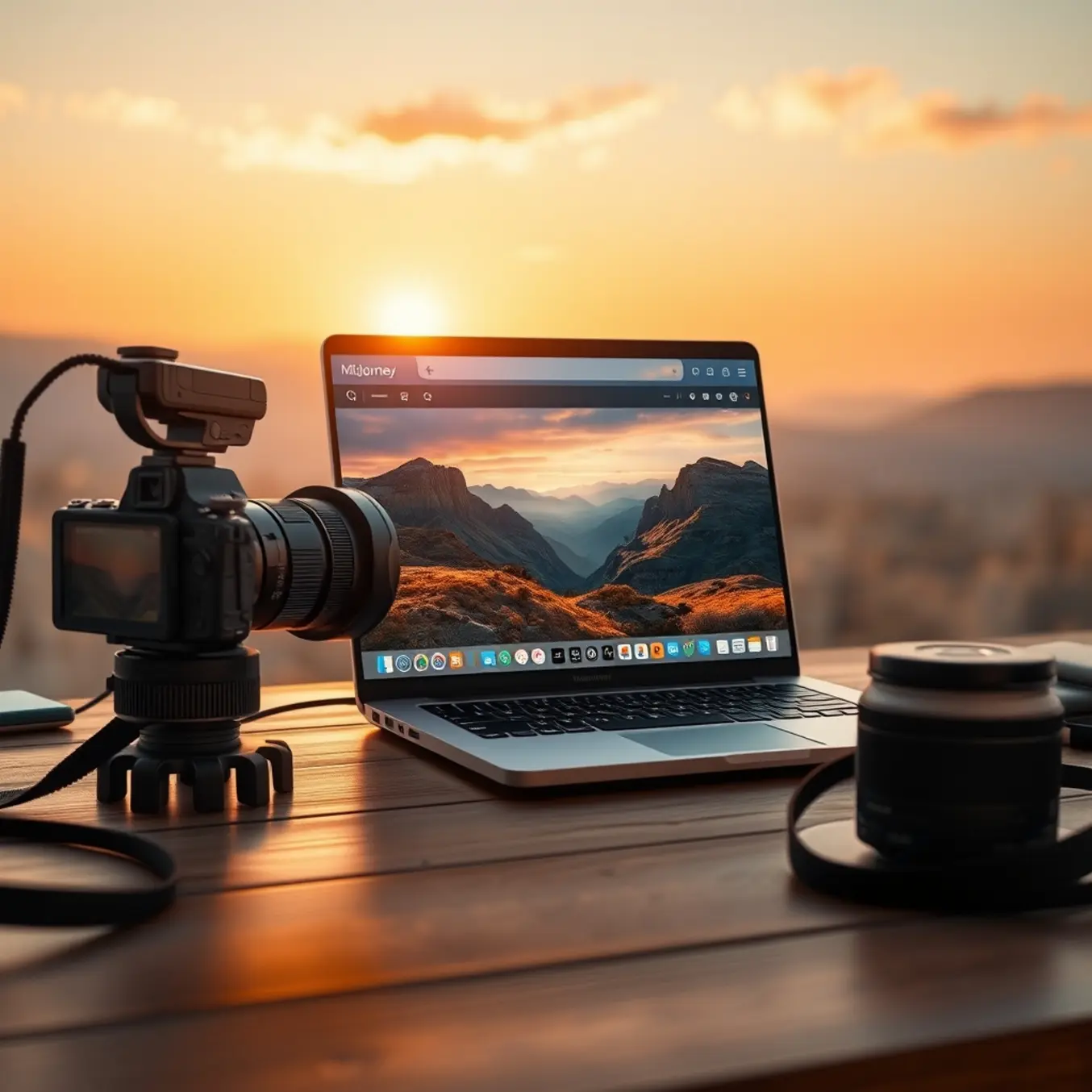
Midjourney’s ability to generate stunning visuals from a simple text prompt is powered by a sophisticated type of artificial intelligence known as a diffusion model. Unlike earlier AI that pieced images together from a library, diffusion models learn by a process of intelligent deconstruction and reconstruction. They are trained on millions of image-text pairs, learning to associate descriptive language with visual patterns, styles, and concepts.
The core of this process is the neural network, a complex system modeled loosely on the human brain. This network doesn’t store images but instead learns a vast, multidimensional map of visual possibilities called a latent space. Think of this as a universe of all potential images, where similar concepts (like “cat” and “kitten”) exist near each other. Your text prompt acts as coordinates, guiding the AI to a specific region within this space to begin creation.
The Diffusion Process: From Noise to Masterpiece
When you submit a prompt, Midjourney doesn’t start with a blank canvas. Instead, it begins with a frame of pure visual noise—random pixels. The AI then iteratively “denoises” this image, step by step, refining it toward a coherent picture that matches your description. At each step, the neural network predicts what the image should look like based on its training and your prompt, gradually removing noise to reveal the final artwork. This is why adjusting the chaos parameter or seed can produce wildly different results from the same prompt; you’re altering the starting point of the denoising journey [Source: AssemblyAI].
What Sets Midjourney Apart?
While Midjourney shares the foundational diffusion architecture with tools like DALL-E 3 and Stable Diffusion, it has carved a distinct niche through its artistic output and user experience.
- Artistic Style: Midjourney is renowned for its default aesthetic that leans toward painterly, cinematic, and highly stylized visuals. It often produces images with a dramatic, cohesive feel that many users find more immediately “artistic” compared to other generators.
- Prompt Interpretation: The model is particularly adept at interpreting abstract, emotive, or stylistic language (e.g., “ethereal,” “dreamlike,” “in the style of Hayao Miyazaki”). It excels at blending concepts in visually harmonious ways.
- Platform & Workflow: Unlike web-based interfaces, Midjourney operates primarily through Discord, a chat app. This creates a unique community-driven environment where users can see others’ prompts and generations in real-time, fostering inspiration and learning. For a deep dive into crafting effective instructions, see our guide on writing perfect AI prompts.
Ultimately, Midjourney’s “secret sauce” lies in its specific training data and the nuanced tuning of its model, which prioritizes aesthetic appeal and imaginative interpretation. This focus makes it a favorite for artists, designers, and marketers seeking to create compelling, brand-aligned visuals quickly. To see how these images can be applied professionally, explore our guide on creating branded images with AI templates.
Mastering Prompt Engineering for Consistent Results
Achieving reliable, high-quality outputs from AI image generators requires more than just a creative idea—it demands a structured approach to prompt engineering. This systematic method involves organizing keywords, defining stylistic parameters, and avoiding common pitfalls that lead to unpredictable results. By mastering these elements, you can transform your prompts from vague requests into precise instructions that the AI can consistently interpret and execute.
Building a Keyword Hierarchy
The foundation of an effective prompt is a clear hierarchy of keywords. Think of your prompt as a sentence where the most important concepts come first. Start with the core subject, followed by key actions, descriptive details, and finally, the artistic style. For example, instead of a messy prompt like “a beautiful fantasy castle with dragons flying, cinematic, epic,” structure it hierarchically: “A cinematic fantasy castle (subject), under attack by flying dragons (action), with towering spires and glowing runes (details), in the style of epic digital concept art (style).”
This structure helps the AI’s language model prioritize information. Leading with the main subject establishes the focal point, while subsequent clauses add layers of context. Research into how models like DALL-E and Midjourney process text shows they assign more weight to tokens at the beginning and end of a prompt [Source: arXiv]. Therefore, placing your primary subject and desired style at these strategic points increases the likelihood they will be prominently featured in the final image.
Leveraging Style Descriptors for Cohesion
Style descriptors are the command dials for your AI’s artistic engine. They go beyond simple terms like “realistic” or “cartoon” to encompass specific art movements, technical terms, and even the names of renowned artists or studios. For instance, specifying “in the style of Studio Ghibli” will produce a vastly different result than “in the style of cyberpunk concept art.”
To ensure consistency across a series of images, maintain a stable set of style descriptors. If you are generating a sequence for a storyboard or brand campaign, anchor your prompts with a consistent phrase like “photorealistic, 85mm portrait photography, soft studio lighting.” This acts as a constant, guiding the AI to produce a cohesive visual family. For a deeper exploration of artistic styles, our guide on top AI art styles to explore provides an extensive list of effective descriptors to experiment with.
Avoiding Common Prompting Mistakes
Even with a good structure, several common errors can derail your results. First, avoid contradictory terms. Prompts like “a minimalist, cluttered desk” confuse the AI, leading to compromised outputs. Instead, choose a clear direction. Second, be wary of overloading your prompt with too many details. While specificity is good, an excess of competing concepts (“a wise old wizard with a long beard, casting a fire spell, in a dark forest, at night, with a full moon, and an owl watching”) can cause the AI to ignore some elements entirely.
Another critical mistake is neglecting negative prompts. Most advanced platforms allow you to specify what you don’t want in the image. Using negative prompts like “–no blurry, –no deformed hands, –no text” can proactively filter out common AI artifacts and refine the output significantly. This technique is especially useful for achieving professional-grade details, as discussed in our comprehensive guide on fixing hands, faces, and details.
Finally, remember that prompt engineering is iterative. Treat your first output as a draft. Analyze what worked and what didn’t, then refine your keyword hierarchy and descriptors accordingly. This cycle of creation and refinement is the key to moving from random generations to predictable, professional-quality artwork. For a step-by-step framework to build this skill, our ultimate guide to writing better prompts offers a proven methodology.
Advanced Parameters for Precision Control
Moving beyond the text prompt, advanced parameters give you fine-grained control over the composition, style, and consistency of your AI-generated images. Mastering these tools is essential for professional workflows.
Mastering Aspect Ratios for Composition
An image’s aspect ratio—the proportional relationship between its width and height—is a foundational control that shapes composition and intent. For instance, a square 1:1 ratio is classic for social media posts, while a cinematic 16:9 ratio is ideal for widescreen visuals. Conversely, a tall 9:16 ratio is perfect for mobile stories and Pinterest pins. Many AI image generators, like Midjourney and DALL-E 3, allow you to specify this using commands like --ar 16:9. Choosing the correct ratio from the start ensures your final image fits its intended platform without awkward cropping, saving significant editing time later.
Fine-Tuning Style and Mood with Stylization
The stylization parameter (often --s or --style) controls how strongly the AI adheres to artistic conventions versus your literal prompt. A low stylization value yields more literal, predictable results, which is useful for technical or product-focused images. Meanwhile, a high value pushes the AI toward more artistic, dramatic, and visually surprising interpretations. This is excellent for creating evocative concept art or abstract pieces. Experimenting with this parameter is key to navigating the balance between creative freedom and precise control.
Introducing Controlled Chaos for Variation
Sometimes, you want surprise within boundaries. The chaos parameter (typically --chaos or --c) introduces controlled randomness into the image generation process. A low chaos value will produce very similar initial image grids, offering consistency. In contrast, a higher chaos value generates four wildly different options in a single grid, increasing the chance of a unique, unexpected masterpiece. This tool is invaluable when you’re stuck in a creative rut or seeking inspiration.
The Power of Seed Values for Consistency
For professional workflows, especially when creating a series or maintaining character consistency, the seed value is indispensable. A seed is a number used to initialize the AI’s random number generator. By using the same seed value with a similar prompt, you can generate nearly identical images, allowing for subtle, controlled variations. For example, you can create a character in the same pose and setting but with different clothing by keeping the seed constant while adjusting the descriptive text. Mastering seeds is a cornerstone technique for mastering character consistency in AI art and building cohesive visual narratives.
The true power lies in combining these parameters to achieve highly specific results. Imagine you need a series of branded social media banners. You could start with a base prompt, lock in a seed for consistency, use a specific aspect ratio for the platform, apply a moderate stylization to align with your brand’s aesthetic, and add a touch of chaos to generate multiple layout options. This systematic approach transforms the AI into a predictable, precision tool.
Specialized Techniques for Different Art Styles
Applying your prompting and parameter skills to specific genres unlocks Midjourney’s full creative potential. Each style requires a tailored approach to language and settings.
Mastering Photorealistic Image Generation
Creating photorealistic images in Midjourney requires a precise approach to prompt engineering and parameter adjustment. The key is to use specific, descriptive language that references real-world photography techniques. For instance, terms like “photorealistic,” “hyperrealistic,” “shot on a Canon EOS R5,” or “85mm portrait lens” guide the AI toward a photographic style. Including lighting descriptors such as “cinematic lighting,” “soft window light,” or “dramatic rim lighting” adds depth and authenticity. Moreover, specifying a photographer’s name or a photographic style (e.g., “in the style of Annie Leibovitz”) can significantly elevate the output’s realism. For the highest quality, use the --style raw parameter, which reduces Midjourney’s default artistic interpretation in favor of a more literal, detailed result [Source: Midjourney Documentation].
Beyond the prompt, several advanced parameters are crucial. The --chaos parameter (set low, e.g., 0–20) reduces random variation between initial image grids, leading to more consistent and predictable results. A higher --stylize value (e.g., 1000) can sometimes enhance detail, but for pure realism, a lower value may prevent unwanted artistic flourishes. Finally, using the upscale tools (U1, U2, U3, U4) on your chosen variation is essential to reveal the full resolution and intricate details.
Crafting Artistic and Painterly Styles
Transitioning from photorealism to artistic expression involves invoking specific art movements, mediums, and master artists. To generate images reminiscent of oil paintings, watercolors, or charcoal sketches, embed those terms directly into your prompt. Phrases like “oil on canvas,” “impressionist brushstrokes,” or “watercolor wash” are highly effective. Referencing famous artists—such as “in the style of Van Gogh,” “a painting by Monet,” or “illustration by Arthur Rackham”—provides the AI with a rich stylistic blueprint. This technique allows you to explore everything from Renaissance classics to modern digital art.
Midjourney’s --stylize parameter (or --s) is your primary tool for controlling artistic interpretation. A higher stylize value (the default is 100) pushes the image further away from a literal prompt interpretation and toward a more artistic, dramatic, or abstract composition. For a strong painterly effect, experiment with values between 250 and 750. Additionally, using double colons :: with weights allows you to balance elements. For example, a forest clearing::2 mystical fairy::1 ethereal glow::1.5 gives more importance to the setting than the subject, helping to craft a cohesive artistic scene.
Generating Professional Concept Art
Concept art demands a focus on mood, story, and environment. Successful prompts for this genre combine descriptive world-building with stylistic keywords from film and games. Start with a strong subject and setting: “concept art of a cyberpunk market alley at night, neon signs, rainy streets, dense crowds.” Then, layer in industry-standard style cues like “matte painting,” “environment concept,” “keyframe illustration,” or “Blizzard Entertainment style.” Including terms such as “dynamic lighting,” “moody atmosphere,” and “highly detailed” ensures the output feels professional and usable for pre-production.
Concept art is inherently iterative. Use Midjourney’s variation tools (V1, V2, V3, V4) extensively to explore different compositions, color palettes, and design details from a single promising result. The “Remix Mode” (enabled with /prefer remix) is particularly powerful, allowing you to modify the prompt when creating variations, letting you tweak specific elements like character design or weather conditions without starting from scratch. This workflow mirrors a traditional concept artist’s process of rapid iteration and refinement.
Exploring Abstract and Non-Representational Art
Abstract image generation in Midjourney is about embracing ambiguity, texture, and form over recognizable subjects. Prompts should focus on emotions, colors, shapes, and physical art processes. Effective prompts might be “abstract expressionism, violent splashes of crimson and gold, textured impasto, emotional chaos” or “geometric abstraction, clean overlapping circles and triangles, pastel gradient background, minimalist.” References to movements like “De Stijl,” “Bauhaus,” or artists like “Jackson Pollock” and “Hilma af Klint” provide strong directional cues.
To push images toward abstraction, experiment with a high --chaos value (e.g., 50–100) to introduce more surprising and unconventional compositional elements. The --stylize parameter can also be set very high to prioritize artistic form over literal prompt adherence. Furthermore, using abstract seeds from previous generations via the --seed parameter can help maintain a consistent visual theme across a series of abstract works. The goal is to use the AI as a collaborative partner in exploring form and color beyond traditional representation.
Post-Processing and Refinement Workflow
The journey doesn’t end with generation. A professional post-processing workflow is essential to polish raw AI outputs into finished, high-quality assets.
Upscaling Your Midjourney Creations
Upscaling is the process of increasing an image’s resolution and detail, transforming a good Midjourney output into a stunning, high-fidelity masterpiece suitable for large prints or detailed viewing. Midjourney offers built-in upscalers, accessible by clicking the “U” buttons (U1, U2, U3, U4) beneath a generated image grid. Each button corresponds to one of the four images, creating a single, higher-resolution version. For even greater detail, you can use a “Beta Upscale” or “Creative Upscale” for different stylistic enhancements. However, for professional-grade results, especially for high-quality printing, dedicated external AI upscalers like Topaz Gigapixel AI or Upscayl often provide superior sharpness and artifact reduction.
Refining with Inpainting and Variations
Inpainting allows you to edit specific parts of an image by regenerating a selected area. In Midjourney, you can use the “Vary (Region)” tool after upscaling an image. This lets you highlight a portion (like a face or object) and write a new prompt to alter it, seamlessly blending the change with the surrounding artwork. Meanwhile, the “Vary” buttons (V1, V2, V3, V4) generate new variations of a selected image based on its original composition and style, offering alternative takes without starting from scratch. These tools are essential for iterative refinement, allowing you to perfect elements that AI sometimes struggles with.
Leveraging External Editing Tools